Create a report
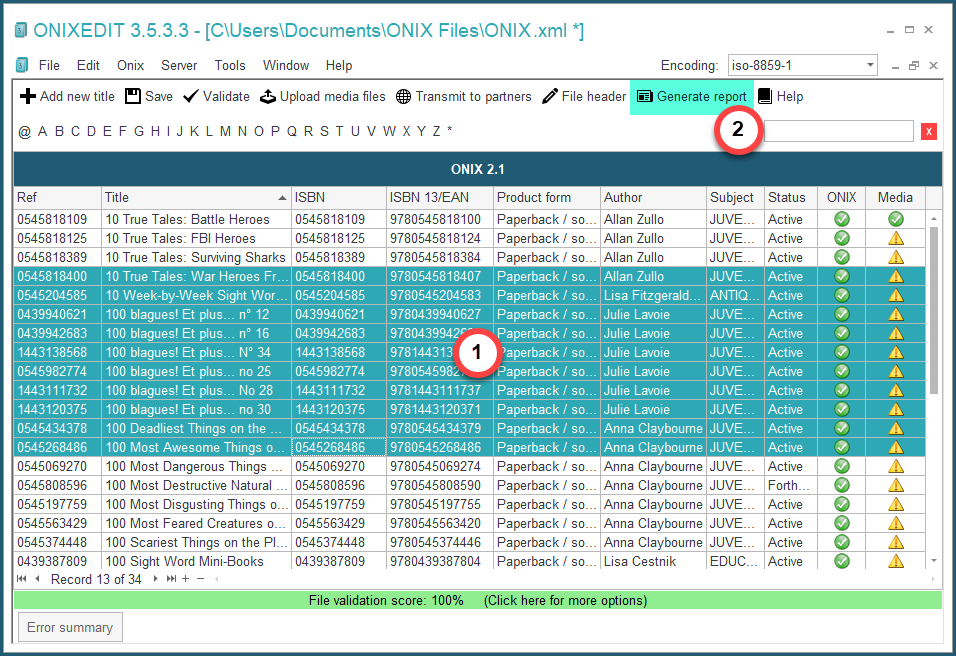
With ONIXEDIT, you can create awesome reports for your marketing purposes based on your ONIX metadata. You just have to select the titles for which you want a report and click on the "Generate report" button from the tool bar:
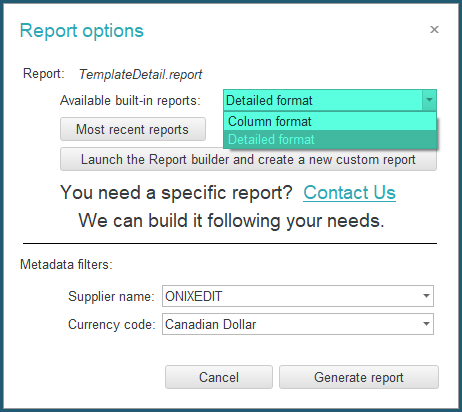
You will find 2 built-in reports that are ready to use:
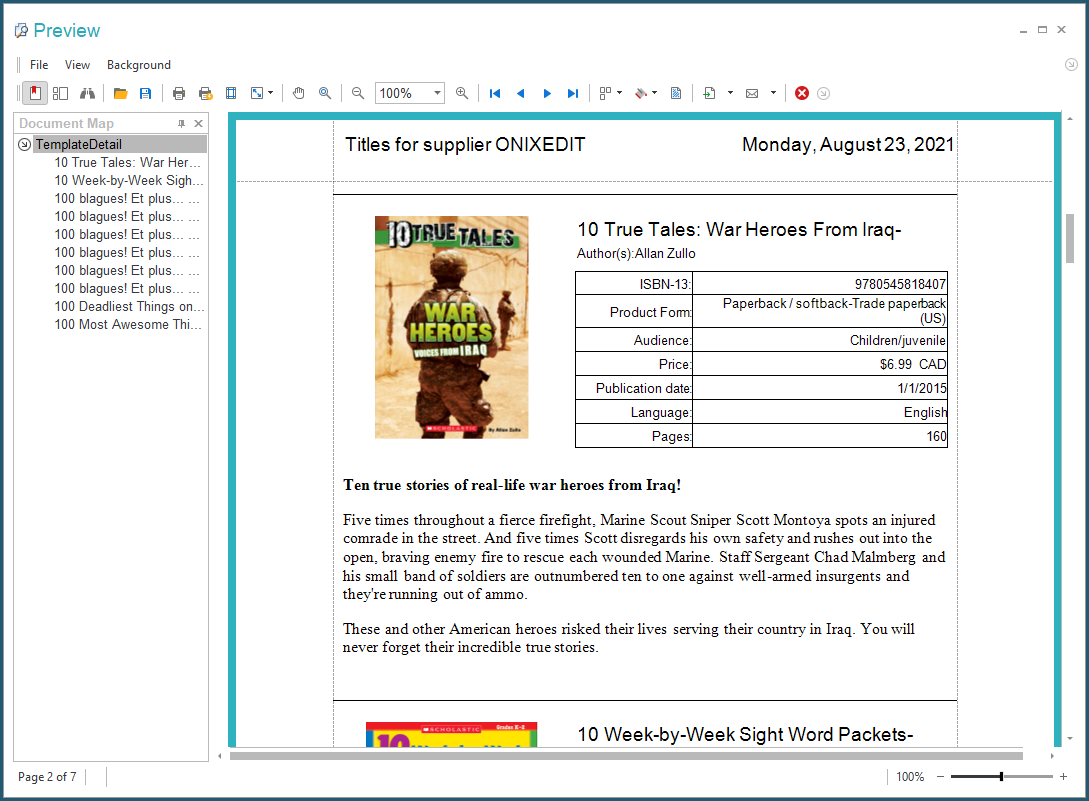
For instance, this is the Detailed format report:
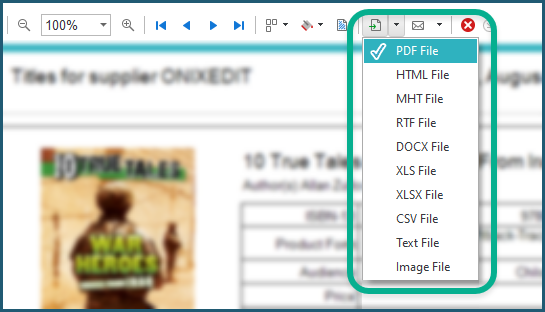
Of course, you can print your reports, but you can also save it in different file formats:
You can also create your own reports and share it with your colleagues using our Report Builder:
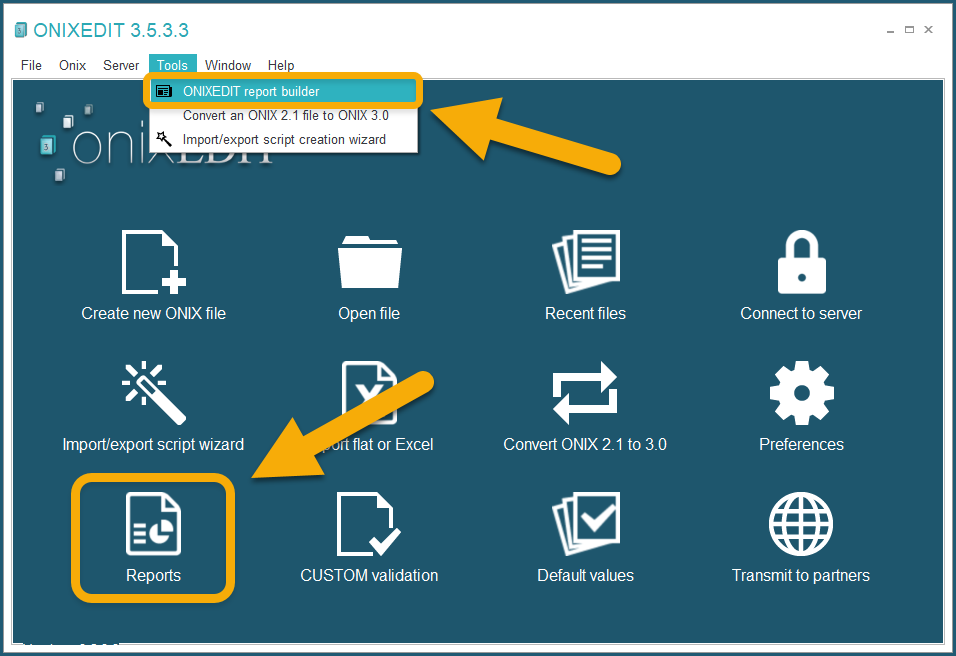
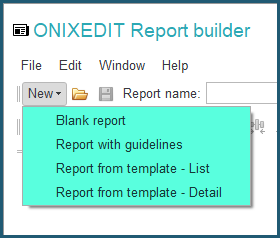
Using the Report Builder, you can create a new report from scratch or use one of our built-in reports as a template:
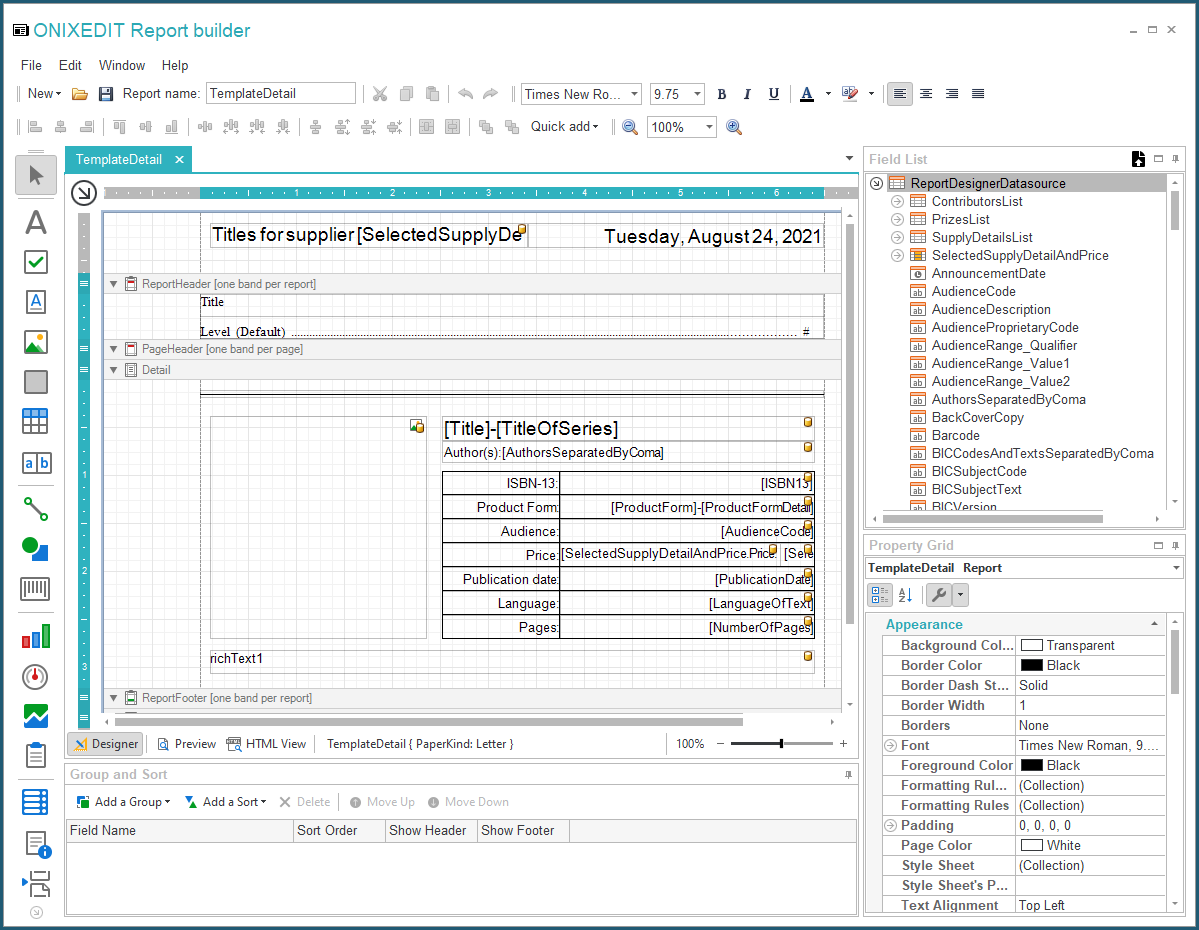
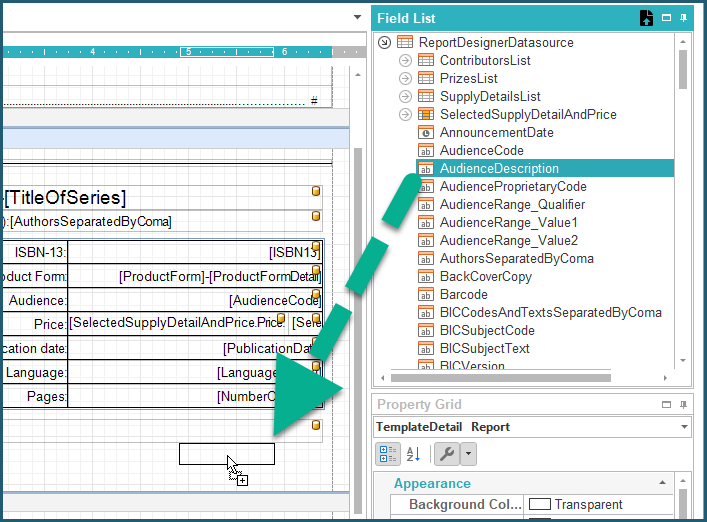
You will find pre-defined ONIX fields in the "Field list" panel that you can place on the working surface of the report by drag & drop:
Once your report is completed, you can save it to your PC:
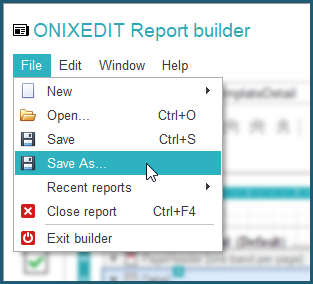
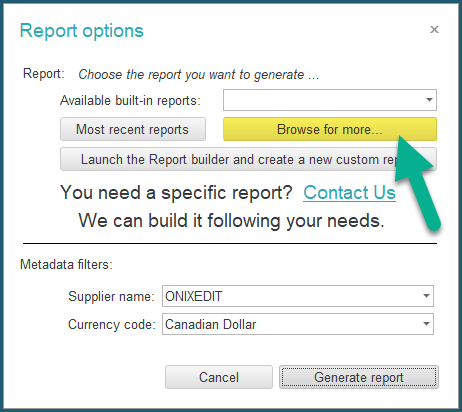
And use it with the "Browse for more" button from the "Generate Report" tool:
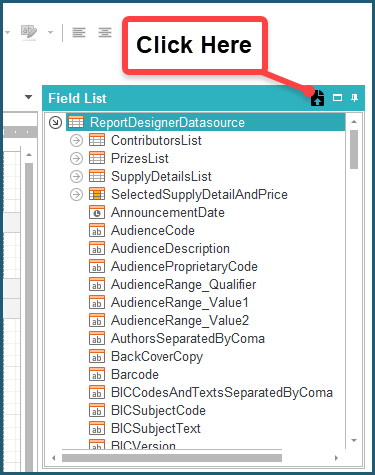
Since version 3.4.9, you can now modify the default Field List to suit your exact needs simply by binding an ONIXEDIT Export Script to your report. As you surely already noticed, the default Field List provides only the most common ONIX fields that you may need. However, if you created an export script with very specific ONIX elements or even XPATH columns, you can now associate your export script to your ONIXEDIT report. To do so, just click on the following button that is shown in the Field List header:
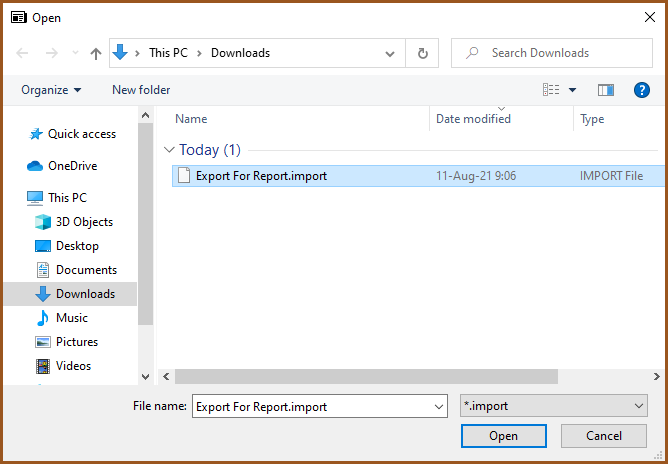
A standard Open File window will appear. Locate your ONIXEDIT Export Script and open it:
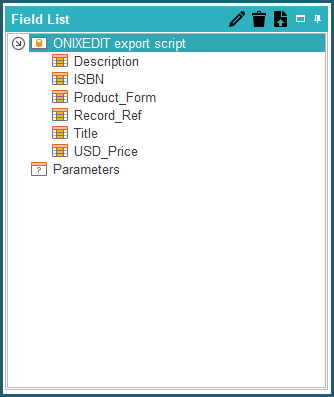
As a result, you will find each of your export script columns in the Field List:
ONIXEDIT reports are based on the commercial component Report Designer from DevExpress. You will find complete documentation about it here.