Set Custom Validation
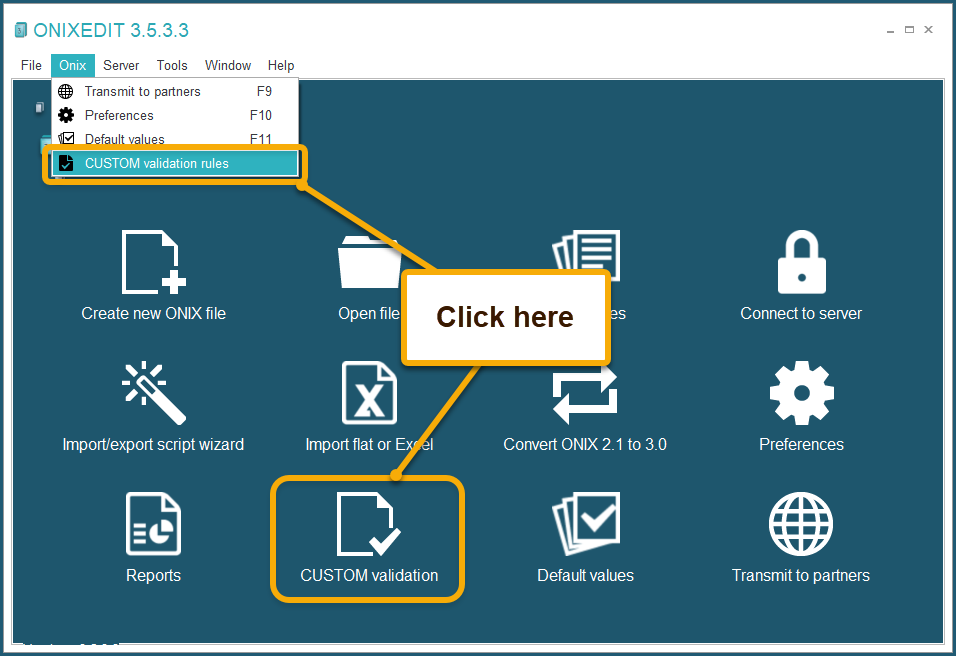
If your organization has special requirements about their ONIX metadata, you have a new tool available since version 3.1.9 of ONIXEDIT: The Custom Validation Rules:
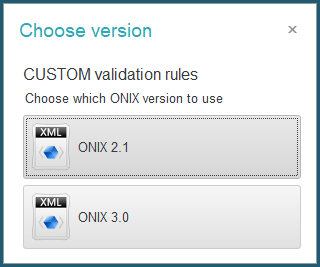
You can set different Custom Validation rules for ONIX 2.1 and ONIX 3.0:
Using a special form of either the simplified or the advanced interface, you just have to identify your mandatory fields with the F3 key. You simply have to click on the field you want to make mandatory and press F3. The new mandatory field will show [REQUIRED] with a distinctive background color. Pressing it again will remove the [REQUIRED] status:
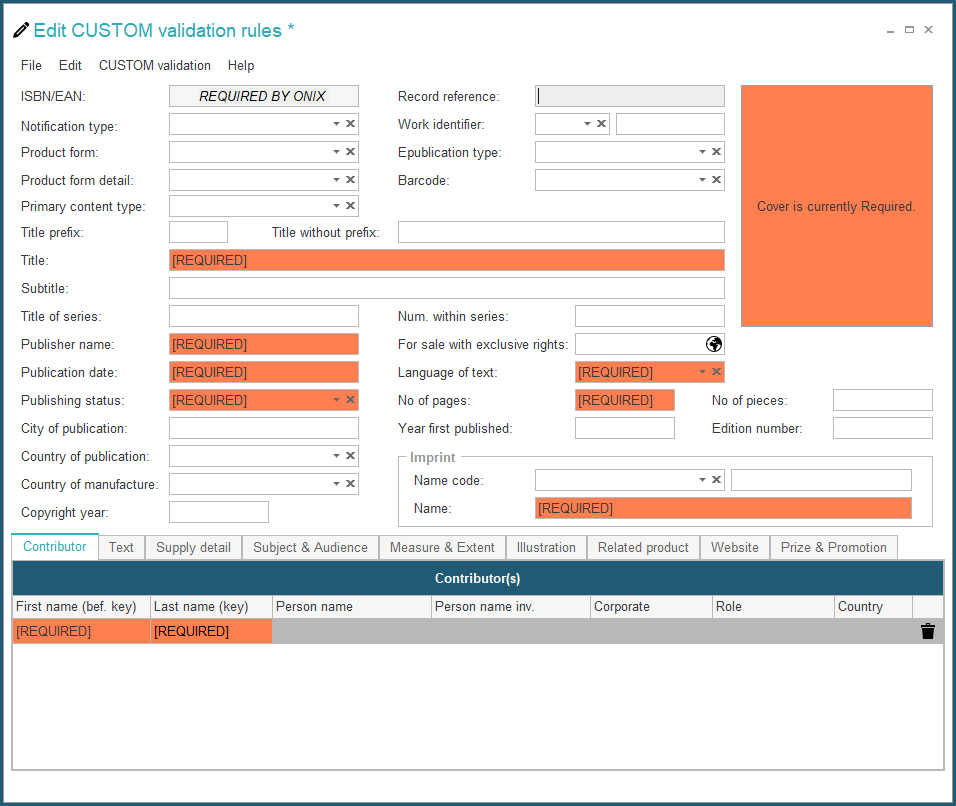
You can also set mandatory values. For instance, if you want to have at least one contributor having a First name, a Last name and the role set to "By (author)", you will define it like this:
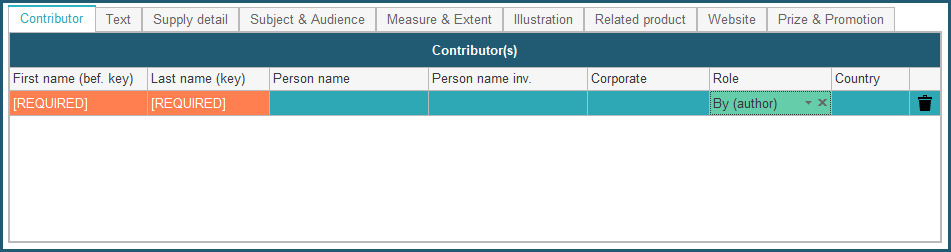
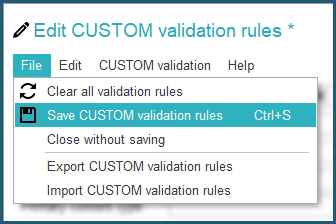
Once done, save your custom validation rules and close the custom validation form.
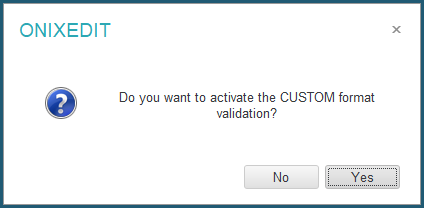
ONIXEDIT will ask you if you want to activate your custom rules right now:
If you click on Yes, you will find it in the Specialized validation formats of your ONIXEDIT Preferences:
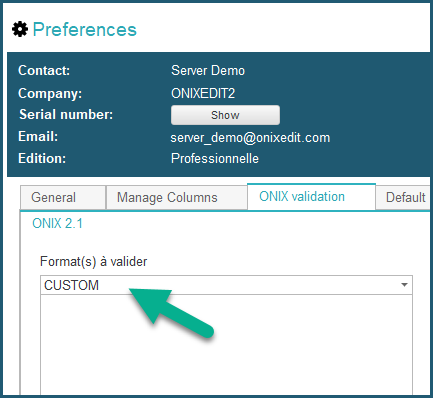
You can also activate or deactivate it later in the preferences.
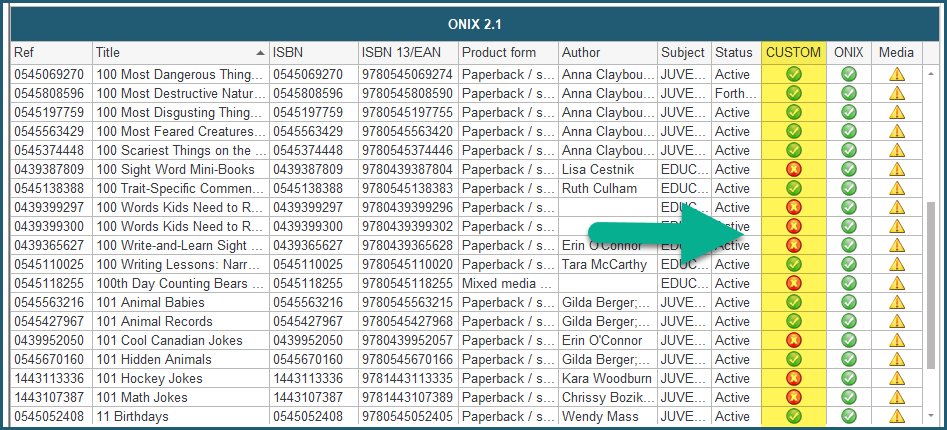
Once activated, you will find a new "CUSTOM" column in the main list of your ONIX file showing the titles that are compliant to your custom rules:
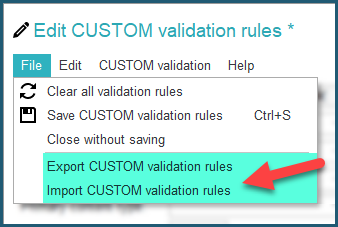
You can also share your custom validation rules with colleagues with the Import/Export function of the Custom validation rules form: