
Sign in, language and theme
The ONIXEDIT Dashboard is a web application: open it in a modern browser, sign in once, and every tool you are entitled to — MediaSpace, Preferences, AIA, Scheduler — is one click away in the left sidebar. This page walks through signing in, the layout of the screen, switching language or dark mode, changing your password, and what happens when a session expires.
Where to find it
Open the Dashboard address your organisation uses (the Open the Dashboard link at the top of this manual points to the hosted platform). If you are not signed in, you are taken to the sign-in page automatically; after signing in you land on the page you asked for.
How to sign in
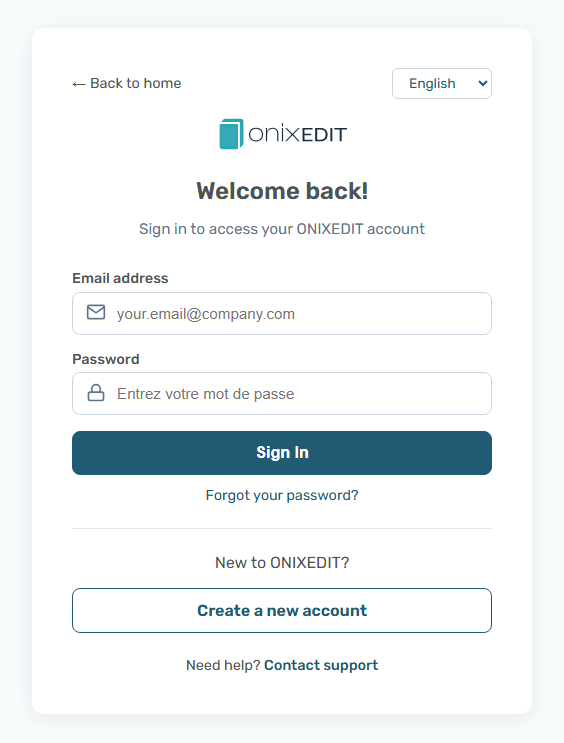
- Enter your Email address — the e-mail of your ONIXEDIT account or of your ONIXEDIT Server Edition user account.
- Enter your Password.
- If your account is protected by two-factor authentication, enter the 6-digit code from your authenticator app.
- Click Sign In.
You are then returned to the Dashboard. Regular accounts land on MediaSpace; on an on-premises installation of ONIXEDIT Server, where MediaSpace does not exist, you land on Preferences instead.
Failed attempts
After several wrong passwords the account is temporarily locked and the sign-in page shows Too many failed attempts. Please wait a few minutes and try again. The lock is shared with ONIXEDIT Pro and the Automated Ingestion Agent, which sign in with the same account: wait a few minutes rather than retrying from another application.
On-premises installations
On an on-premises installation the sign-in form is part of the Dashboard itself (Welcome back!, then Email address and Password). Only ONIXEDIT Server Edition user accounts can sign in there, and only the licence owner sees Preferences.
Screen overview
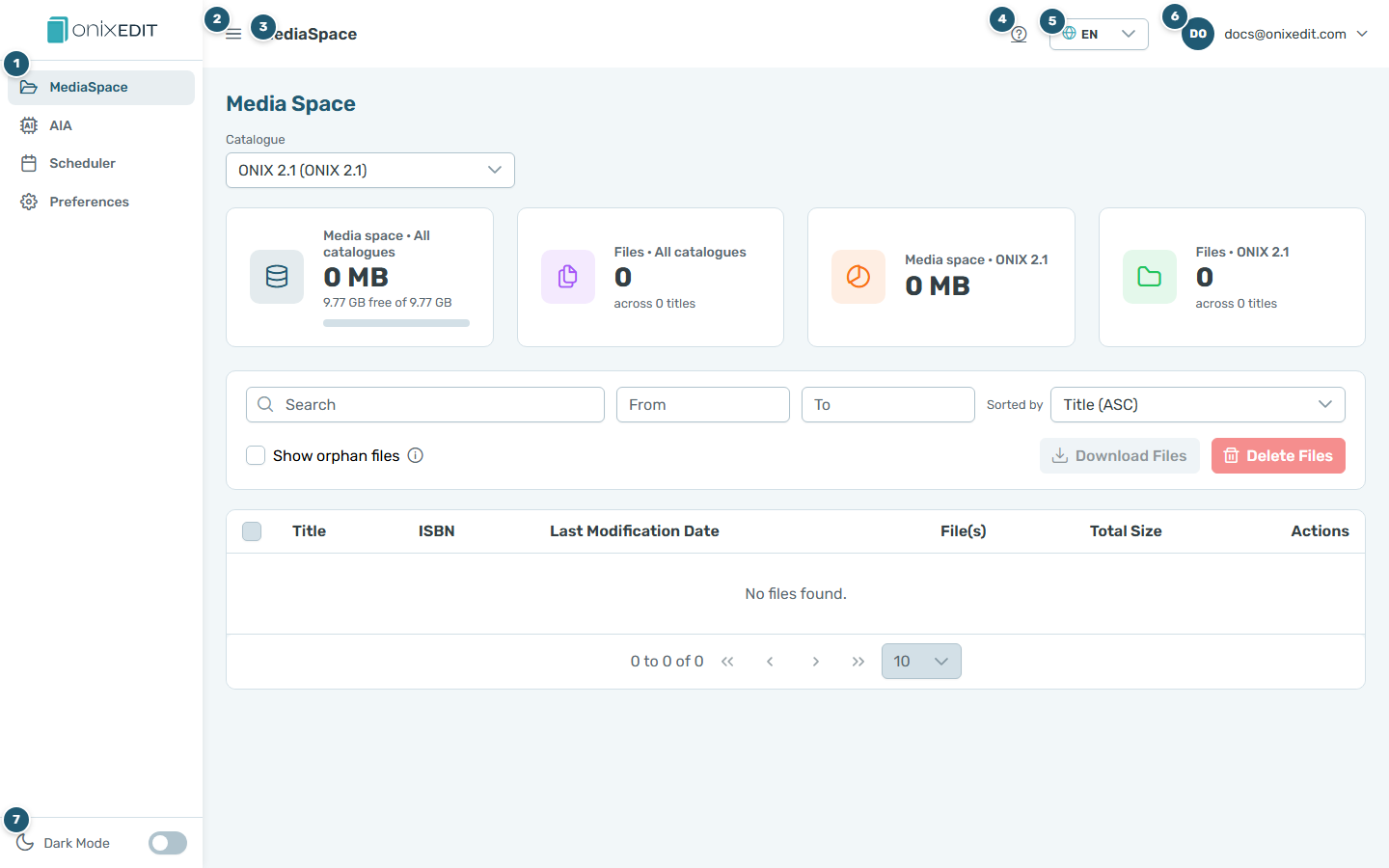
- Sidebar — one entry per tool your account can use: MediaSpace, AIA, Scheduler, Preferences. The current page is highlighted.
- Collapse button — shrinks the sidebar to icons only, useful on small screens; click again to expand it.
- Page title — the name of the tool you are in.
- Help (?) — opens the chapter of this manual that matches the page you are on, in your language, in a new tab.
- Language switcher — EN, FR, ES or PT.
- User menu — your e-mail address, Change password and Logout.
- Dark Mode — the toggle at the bottom of the sidebar.
How to change the language
- Click the language switcher in the topbar (it shows the current code, e.g. EN).
- Pick English, Français, Español or Português.
The whole interface switches immediately, and the choice is remembered by your browser for the next visit. The manual opened by the ? button follows the same language.
How to switch to dark mode
Use the Dark Mode toggle at the bottom of the sidebar. The preference is stored in your browser, so it also applies to the sign-in page the next time you come back.
How to change your password
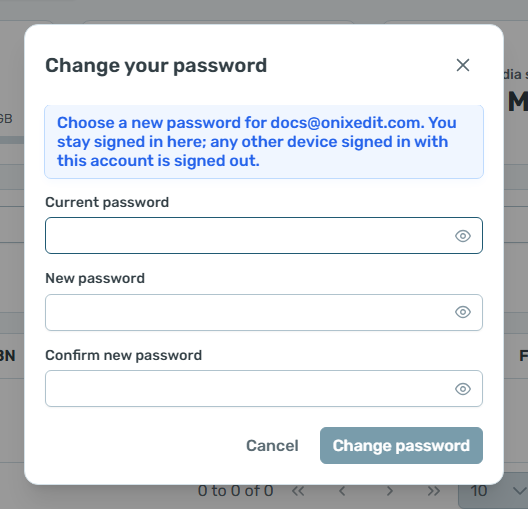
- Open the user menu (your name at the top right) and choose Change password.
- Enter your Current password, then the New password twice (Confirm new password). The new password must have at least 7 characters and must differ from the current one.
- Click Change password.
The dialog tells you which credential you are changing: signed in with a Server Edition user account, you are changing that account's password and your ONIXEDIT account password, if you have one, is untouched. After a successful change you stay signed in on this device; any other device signed in with the same account is signed out. A wrong current password keeps the dialog open with the message The current password is not correct.
How to sign out
Open the user menu and choose Logout. You are returned to the sign-in page.
When a session expires
Sessions have a time limit. When it is reached, or when the server no longer accepts your session, the Dashboard shows Session expired (or Authentication failed) and takes you back to the sign-in page. Nothing is lost: sign in again and you are back where you were.
Frequently asked questions
Which credentials do I use to sign in?
Your ONIXEDIT account (the e-mail and password you use on onixedit.com), or the e-mail and password of your ONIXEDIT Server Edition user account. Both work on the same sign-in page.
Why do I see fewer tools in the sidebar than a colleague?
The sidebar only lists the tools your account is entitled to (MediaSpace, Preferences, AIA, Scheduler). Entitlements are refreshed every time you sign in.
Does the language I pick affect the ONIX data in my catalogue?
No. The language switcher only changes the Dashboard's own interface and is remembered by your browser.
I was signed out with a "Session expired" message. Did I lose anything?
No. Your session simply reached its time limit or was invalidated; sign in again and continue where you left off.